The QR code on your table might not be yours
Scammers are sticking their own QR codes over real ones and sending people to fake payment pages that are now cheap to make convincing. A code is a link nobody can read — so the fix is a web address your customers can.
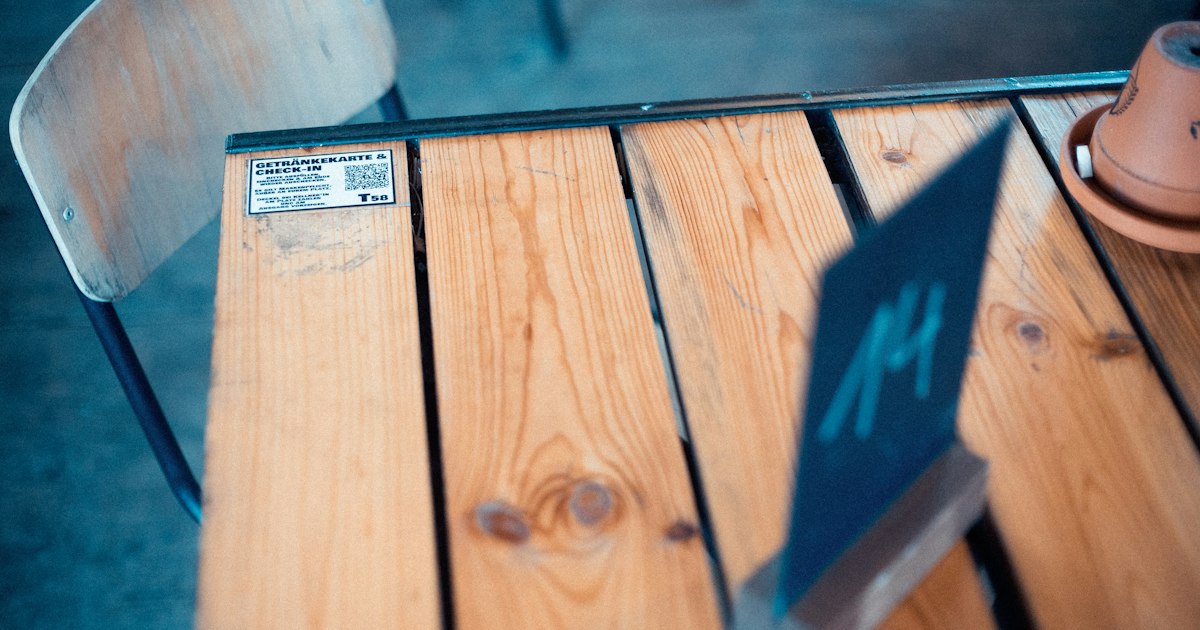
In February, a city in North Carolina found around twenty fake stickers on its downtown parking meters. Each said “scan to pay”. Each sat neatly over, or next to, the real code. Each sent drivers to a payment page that looked official and wasn’t.
In September the US Federal Trade Commission put out a national warning about it. Losses reported by victims range from a $20 or $30 “parking fee” to thousands in recurring charges set up on a card they typed in once.
Parking meters get the headlines. But stop and think about where else a printed square with “scan me” next to it now lives — and who put it there.
It’s on your tables
Plenty of cafés, bars and restaurants moved menus, ordering or payment onto a QR code a few years ago. Salons put them on the counter for booking. Shops put them in the window. Market stalls tape them to the cash box.
Every one of those is a link that nobody can read. A customer sees a black and white square and trusts it because it is on your table, under your logo. They have no way to know whether it is your code or one somebody pressed on top of it this morning.
The sticker is the low-tech half. The other half is what it points to.
The fake page is the cheap part now
A fake payment page used to give itself away: clumsy layout, wrong colours, a logo that looked copied off a screenshot. That was a real defence.
It isn’t any more. As one academic put it this summer, generative tools have “lowered the cost of producing a convincing fake. Even a website can be put together in a matter of minutes.” A tidy copy of your menu with a “pay now” button on the end is trivial to produce and hard to tell apart on a phone, at a table, in a hurry.
So the customer’s only real clue is the address in their browser bar — which most people never look at, and which a lookalike can get very close to.
Why this is your problem even though you’re the victim too
It is unfair, but the damage lands on you. The customer scanned your table. They paid what they thought was your bill. When their card is drained, they don’t blame a sticker; they blame the café.
And you may not find out until someone mentions it, or until a polite one-star review appears saying your “payment page” took their money twice.
The fix is an address people can actually read
The FTC’s own advice is to check the web address before entering anything — look for misspellings and swapped letters. The surest version of that is not to rely on the code at all and type the address yourself. Both only help if your address is something a person can read, type and recognise.
So make the code optional rather than the only way in:
- Print your web address under every code, in plain letters, large enough to
read.
yourcafe.co.uk/menuis checkable. A square alone is not. - Use your own domain, short and spelled the way people say it. A long string from a menu service is easy to imitate; your name is not.
- Make the page at that address the real thing. Menu, prices, how to pay. If someone types it instead of scanning, they should land in exactly the same place.
And say it out loud, once, where customers will see it:
Our menu is at yourcafe.co.uk/menu. If a code takes you anywhere else, please tell a member of staff.
The fair question
devkoi doesn’t make QR codes, check the ones on your tables, or take payments. It builds the page they point to.
That page is the part that matters here: a short, plain address on your own domain, with your real menu and prices on it, that a customer can type and recognise. Publishing on your own domain is part of the paid plans, from $19 a month.
What to do this week
1. Walk your own premises and look at every code. Tables, counter, window, door, the card machine. Run a fingernail along the edge — a sticker on top of a sticker is easy to feel. Do it weekly; it takes two minutes.
2. Print the address under every code. Plain letters, readable from a seat. The code becomes a shortcut, not the only door.
3. Give your menu a short, obvious address.
yourname.co.uk/menu beats anything with random characters in it.
“Make our menu live at /menu, with prices, so I can print that address on the tables.”
4. Put the warning on the site and on the table. One line, calm, practical.
“Add to the menu page: ‘Our menu is only ever at yourcafe.co.uk/menu — if a code sends you anywhere else, please tell us.’”
5. Print codes into the menu, not onto stickers. A code printed as part of a laminated card or a table tent is much harder to cover neatly than one on its own sticker.
6. Never let a table code be the only way to pay. If someone hesitates, there should be a till, a card machine or a person.
7. If you find a fake, tell people. Remove it, note where it was, and put a short notice on your website and your door. Customers who scanned it need to know to check their statements.
A QR code was always a slightly strange thing to ask people to trust: a link you can’t read, on a sticker anyone can print.
It worked because nobody had much reason to fake one. Now the stickers cost pennies and the fake pages cost minutes, and the simplest defence turns out to be the oldest one — a name and an address, written where people can read them.